
A sky cube surrounds your track with six square images: front, back,
left, right, top, and bottom. Those images are combined into one
.cub file that MCM2 uses as the track's sky.
Tools and sample files
Sky Walker
Sky Walker helps arrange a panoramic sky image into the six faces needed for a cube.

Four Seasons
Four Seasons was another program used to generate sky images. It is included here for historical reference; its original download site is no longer available.
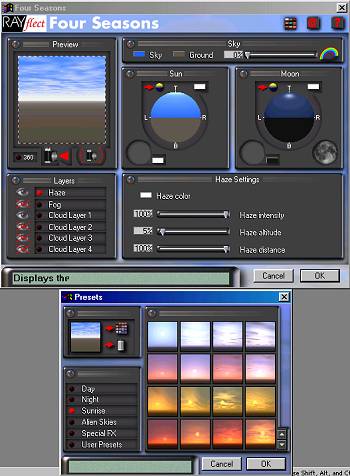
You may also begin with a panoramic photograph or a sky image made in your preferred graphics program. The important result is a set of six square TGA images that line up at their edges.
Build the cube file
Download MakeCub and place the program in a working folder. Export the six cube faces as uncompressed TGA files using these names:
- Place all six TGA files in the same folder as MakeCub.
- Run MakeCub and select the six images for their matching cube faces.
- Save the completed cube as a
.cubfile. - If you want working files to compare against, download the cube sample.
Add the sky to your track
Copy the new .cub file into your track project folder.
Then open the track's .ini file in a text editor and set
the sky value to the name of your cube file.
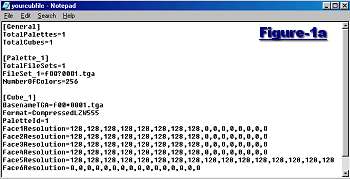
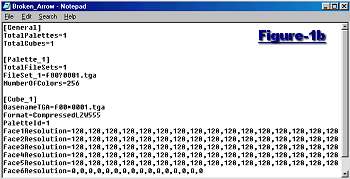
The exact section names can vary with the project, but the sky cube entry will look similar to this:
If you manage the project with Armadillo Project Manager, add the cube to the project along with the track's other supporting files. See the Armadillo Project Manager help for details.
Example project entries
A project SCN file may reference the cube like this:
The matching INI entry must use the same filename:
Once the filenames agree and the cube is included with the project, compile the track and check each horizon seam in the game.