Track Spline Paths
Track path files (.dat) files contain all the data that define the path your track follows around the terrain, as will as the location of the jumps and landing ramps. This data is used to determine when you go off track and it also assists the computer opponents (AI) in measuring how fast the need to go to clear jumps and not fly off the track themselves.
| Here is a sample screen grab from 3D Studio Max showing the TrakBastard plug-in: |
|
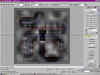
If you haven't already set up the TrakBastard plug-in, just copy the TrakBastard.dlo file into your 3dsmax2\plugins directory and restart Max.
You can study the sample project provided with the nationals
track sample.
Follow these steps to set up a new project from scratch:
- Create a grid object that is 256 x 256 feet across. The number of segments doesn't matter because this object is just a visual reference.
- Center the object at 0,0,0. It should span from -128 to + 128.
- from the top view, map the displacement map you created for your track onto the grid object
- Create a new TrakBastard object (its a Helper type object and listed under Rainbow Studios in the drop down list)
- Left click the basic path of your track.
- Make sure you place the 1st point at the location of the start/finish line. THIS IS IMPORTANT!
- After clicking the final point, right click and the path will close itself.
- Don't panic if the spline path occaisonally screws up visually while you are clicking it out. As soon as you add another point it fixes itself.
- Open the Modifier panel and turn on Sub-Object
- You can now edit each individual point of your spline to make it the exact width of your track.
- You can move individual points by clicking the Max Move tool, then select points as usual.
- You must assign the type of each point on the path to one of three types, jump, straight away, or curve.
- The apex of each of your jumps and landing ramps MUST have a jump point over the highest point in the jump.
- Corners should consist of several points to help create a smooth corner for the AI bikes.
- You can select more than one point at a time using Max's standard selection tools. After selecting a group of points you can click on one of the jump type radio buttons. It will assign all the selected points to the type you click on.
- Tuning the spline path so the AI bikes race competitvely in single player can take a lot of work. If you get a case where the AI are constantly over jumping a landing ramp, try putting a corner point just after the landing ramp, even if there is not really a corner there. They will think there is a corner there and back off the jump a little.
- Select individual points on the spline and adjust the width so that it goes directly to the edge of your track. MCM 1.0 had a number of places where the width of the track was too wide, allowing people to rider around jumps without the game thinking they were off track. Take care to test drive the edge of both sides of your track and tune the spline path until the green off track arrow comes on as soon you get off the intended part of the track.
- To export your data from Max, the Export Trak Info button. The data is written out in text format to a .txt file.
- Use the TrackConvert utility to convert your .txt file into a .dat file
- The command line syntax for TrackConvert is:
For Nationals tracks: TrackConvert * *
For stunt quarries: TrackConvert * * -quarry