Armadillo Object Scripter Help
Download Armadillo Object Scripter (AOS) Beta 1
HERE
Download 3dsMax "Cast Shadows Only" Plugin
HERE
Download Sample Max Files of MCM2 Stock Models
HERE
Download VB 6.0 Runtime (if necessary) HERE
| Index | ||
|
Overview Installation and Setup Buttons and Controls How To Use Support for Stock MCM2 Objects Known Bugs in Beta 1 Credits |
The Armadillo Object Scripter (AOS) utility was designed to give MCM2 track
creators the ability to render object shadows on their textures in 3dsMax. The
program works by building the necessary 3sdMax scripts used to merge and place the
objects into your Max scene. Once these scripts are executed, the Max scene can
then be rendered giving accurate shadows for the track in MCM2 (assuming care was
taken in aligning the light sources. See the MaxCalculator program for
assistance).
Since the Armadillo program was first released by Rainbow Studios, I have always
felt "short changed" in what we could do when creating tracks. This motivated me
to make efforts on expanding the horizons for MCM2 track creations. This program
is just another step along the way, I hope you enjoy it. As with most of my
programs, explicit knowledge of MCM2, Armadillo, and 3dsMax are required
attempting to use this program.
Overview
Installation and Setup
Armadillo Object Scripter (ArmadilloObjectScripter_Beta1.zip)
ArmadilloObjectScripter.exe - Main
program; requires VB6 Runtime installed. Extract to any folder.
ArmadilloObjectScripter.ini - Extract to
same folder as EXE file.
AOS_Help.html - AOS Help file. Extract to
same folder as EXE file.
AOS_01.jpg - Picture for Help file.
Extract to same folder as Help file.
AOS_02.jpg - Picture for Help file.
Extract to same folder as Help file.
C2SE_MaxView.jpg - Picture for Help file.
Extract to same folder as Help file.
** NOTE: If you try to run the program and you get an error message
then you need to install VB6 Runtime. If you've already installed this
and the program still won't run, send me and email and I'll give you a
link to the program that includes an installer (about a 5MB zip file).
You can email me at: jhamblin0@aol.com
3dsMax "Cast Shadows Only" Plugin (ShadowPlugins.zip)
shadow.dlt - Extract to 3dsMax plugins
folder. Requires 3dsMax 3.1.
BlurLib.dlu - Blur Library file for
shadow.dlt plugin. Extract to 3dsMax plugins folder. Requires 3dsMax
3.1.
Sample Max Files of MCM2 Stock Models (StockModels.zip)
Contains several "shadow" versions of the stock models for MCM2. All
objects are created at their full size (in feet). You can extract to
any folder but the ZIP file defaults to creating a folder named
"StockModels". I found it helpful to do this.
Buttons and Controls
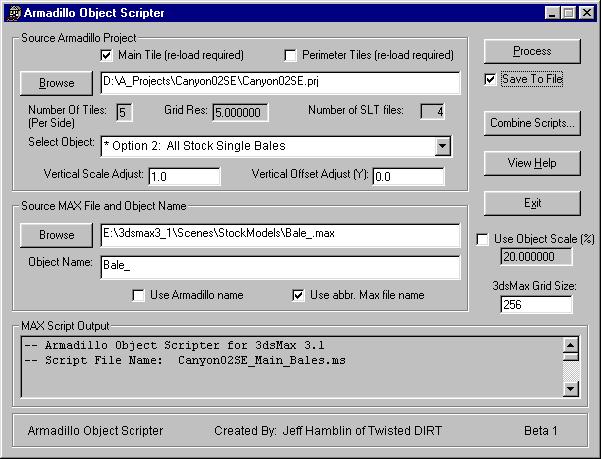
-
Source Armadillo Project
-
"Main Tile" - This is check box is the
default when the program is executed. When checked, this will direct
the AOS program to generate scripts for the Main Tile(center) of
your Armadillo project. Unchecking the box will require a reload of
the project if it is already loaded.
-
"Perimeter Tile" - Checking this check
box will direct AOS program to generate scripts for the Perimeter
Tile(s) of your Armadillo Project. Checking this box will require a
reload of the project if it is already loaded.
-
"Browse" - Used to open your Armadillo
Project.
-
"Number of Tiles (per side)" - Used as
a reference to display the tile format of your Armadillo Project.
-
"Grid Res:" - Used as a reference to
display the Grid Resolution of your Armadillo Project.
-
"Number of SLT files" - Used as a
reference to display the number of SLT files in your Armadillo
Project.
-
"Select Object" - A control used to
select the Armadillo object you will be making a script for. A drop
down selection list allows you to select the desired object.
-
"Vertical Scale Adjust" - An optional
control used to vary the vertical placement of the objects in
3dsMax. This is normally set to one(1.0) unless your are attempting
something tricky.
-
"Vertical Offset Adjust" - An optional
control used to vary the vertical placement of the objects in
3dsMax. This is normally set to zero (0) unless you are attempting
something tricky.
-
Source Max File and Object Name
-
"Browse" - Used to point to the Max
file for the selected vegetation type.
-
"Object Name" - Used enter the 3dsMax
Object Name. It should be noted that it is convenient to keep the
object name the same as the 3dsMax file name.
-
"Use Armadillo name" - Check box used
to automatically insert the Armadillo object name as the Max object
name.
-
"Use Abbr. Max file name" - Check box
used to automatically insert the abbreviated 3dsMax file name as the
object name.
-
MAX Script Output
-
Max Script Output Window - Used as a
reference to view the Max script generated by AOS.
-
Main Controls
-
"Process" - Control button that directs
AOS to generate to the Max script.
-
"Save to File" - Check box that when
checked saves the output script to a file. Unchecked provides a
means for previewing the output before actually saving it.
-
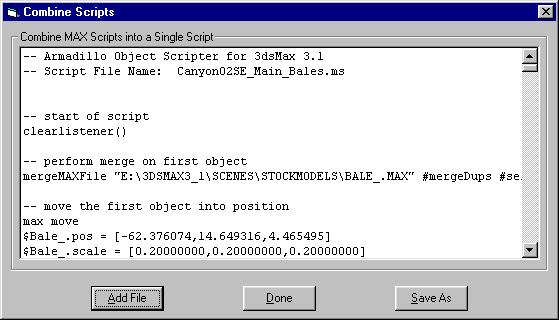
"Combine Scripts..." - Launches a pop
up window that allows you to combine many scripts into one large
script for 3dsMax.
-
"View Help" - Used to launch this Help
file.
-
"Exit" - Used to quit the AOS program.
-
"Use Object Scale (%)" - Check box that
when checked allows you to scale the objects to match the scale of
3dsMax scene. The default is 100% which assumes that the objects and
3dsMax scene are created at actual size. The resulting 3dsMax grid
size is calculated and displayed in the 3dsMax Grid Size field.
When the Use Object Scale check box is unchecked, the 3dsMax Grid Size field becomes a control to enter in the grid size of your 3dsMax scene. You normally would use this if you have already created the 3dsMax scene and know the grid size. In this situation the the resulting object scale is displayed under the Use Object Scale check box.
How To Use
- Run the ArmadilloObjectScripter.exe program and open your PRJ file. This will load all of the project data.
- On "Select Object" click the down arrow and click on the first object.
- Browse for your object Max file and select the one that matches the object name.
- Enter the object name for the Max file.
- Set the object scale or uncheck the check box and set the size of the Max grid (usually 256).
- Click the "Process" button and the script shown in the output display will be written to disk. You will need to create a script for every object type in your track.
- When all the scripts have been made, use the Combine Scripts function to combine all the scripts into a single script file.
- In 3dsMax, click on the Utilities tab (hammer) and click on MaxScript. Click on RunScript and browse for your script file.
- Open your script file and let it go!
When you are finished, your Max scene should look similar to the one in this picture. (Only the objects are imported with AOS. See the Armadillo Enviro Scripter (AES) program for environment shadows.)
** NOTES: In 3dsMax you want to use the Target Direct light source and make sure that the cone is large enough to encompass the entire terrain. Set the HotSpot and Falloff to approximately the same number. Also make sure you have RayTracing ON in the light source and when rendering. Because the tree/shrub objects are flat, an overhead light source will not produce correct RayTraced shadows. You want to have the light source lower in the sky, approximately 45 degrees or less should work well.
Top of PageSupport for Stock MCM2 Objects
When I started this project I realized that many of the stock MCM2 objects were just retextured to provide many occurances of the same model. Some of these include single bales, triple bales, billboard banners, and trash can/55 gal drums. Since these are common objects used on most tracks I went ahead and created the "shadow" Max files and built these into AOS as automatically detected objects. The bottom line is that you should feel free to place any of these objects at will and AOS will detect them for you. These Max files are provided for you in the "StockModels.zip" file. Use the following guide for these objects:
-
Bale_.max = Use for all stock single bales
-
TripleBale_.max = Use for all stock triple bales
-
Billboard_.max = Use for all stock billboard banners
-
55GalDrum_TrashCan_.max = Use for all stock trash cans and/or 55
gal drums
AOS will detect additional stock objects by adding lines to the file "ArmadilloObjectScripter.ini". Basically this file contains a list of stock models that you have made duplicate "shadow" Max files for. The stock objects included with AOS include the following:
(file listing of "ArmadilloObjectScripter.ini")
[MiscStockObjects]
TotalItems=10
Item_1=LightPole.SLB
Item_2=Toilet.SLB
Item_3=Palette01.SLB
Item_4=Toolbox.SLB
Item_5=Co_OpBrick.SLB
Item_6=MiningBldg01.SLB
Item_7=MiningShed01.SLB
Item_8=MiningShack01.SLB
Item_9=WaterTower.SLB
Item_10=HayBale.SLB
NOTE: When you add items to this list you must also adjust the "TotalItems" value. Top of Page
Known Bugs in Beta 1
Figuring out all the rotations in Armadillo and converting them to Max script is no easy task. For the most part you can rotate/tilt your objects in Armadillo as long as you avoid the following situations:
- DO NOT ROTATE AN OBJECT PERFECTLY HORIZONTAL. An example
of this is rotating a Telephone Pole so that it lays
perfectly horizontal on the ground.
- DO NOT ROTATE OBJECTS UPSIDE DOWN.
These problems will eventually be corrected but you should avoid them for now. There may be other bugs in the program so take a screen shot if you can get an error you can repeat.
Top of PageCredits
I as well as the rest of the Twisted DIRT team hope that you find this utility useful in making the highest quality textures possible for your tracks.
Your feedback is important! Please send all comments, questions, and suggestions to:
Jeff Hamblin (VRT_MCMnut)
jhamblin0@aol.com
You can also visit the message boards at Twisted DIRT and let us know what you what you think. Thanks!
Top of Page